By the time you hear a job went sideways, your tech is already two stops down the road and the customer has already made up their mind. Live Recordings changes that. You can join a recording while it's happening, follow the conversation as it unfolds, and send your tech a quick note they'll see on their phone right away, while there's still time for it to help.
Nothing about how they work. Techs start a recording exactly the way they do today, and there's nothing new to set up on their end.
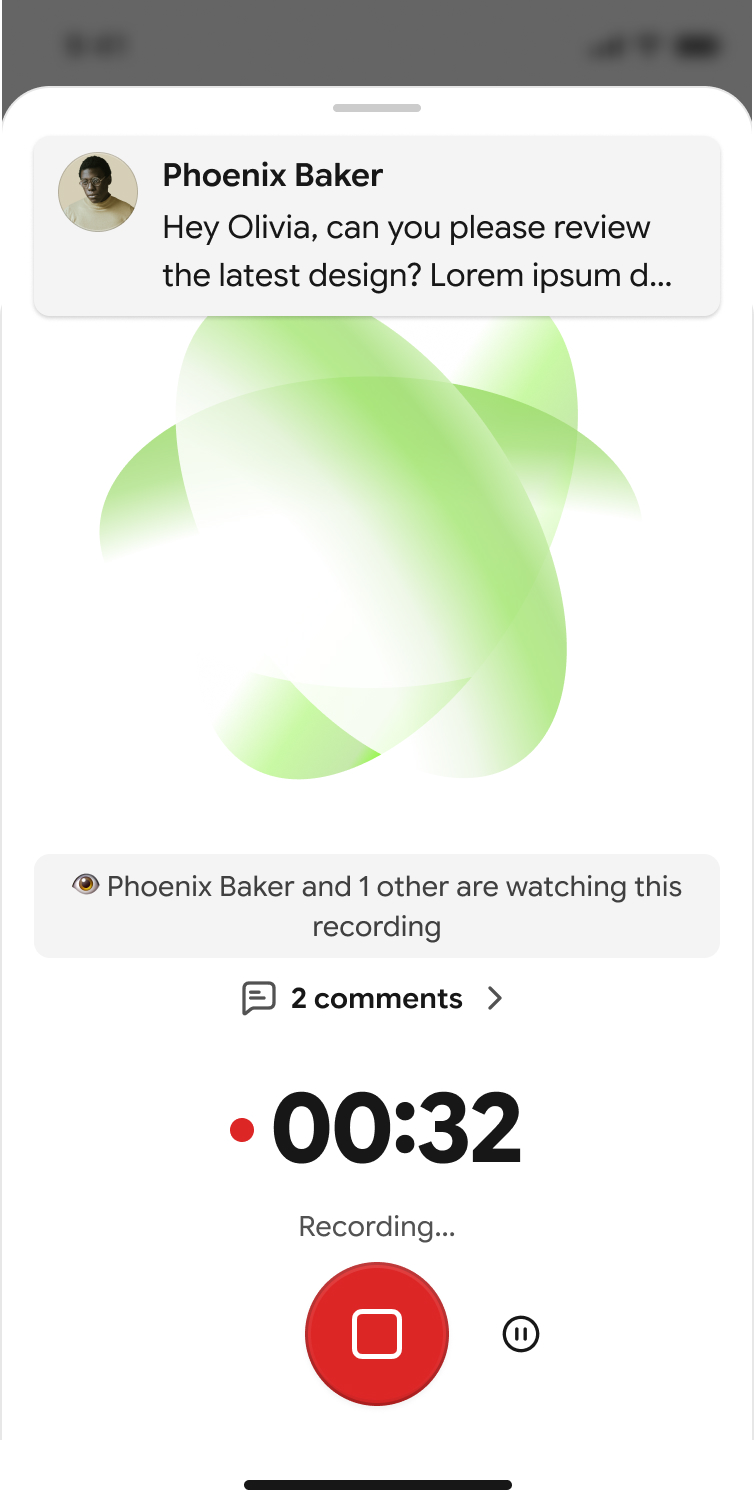
When someone joins, the tech sees a small note on screen letting them know who's there. Any notes you send show up as a short banner they can glance at without stopping the conversation, and they don't need to reply.
There are two ways in.
From the Recordings page. Whenever someone is recording, a Live section appears at the top showing who's on a call, the job, and how long it's been going. Select Join.
From the job channel. When a recording starts on a job, a live indicator and Join button appear right in that job's chat, so you don't have to go looking for it.
Either way, a panel opens with the live transcript, which fills in as the conversation happens and scrolls on its own. You can scroll back to catch something you missed, then select Jump to live to get back to the current moment.
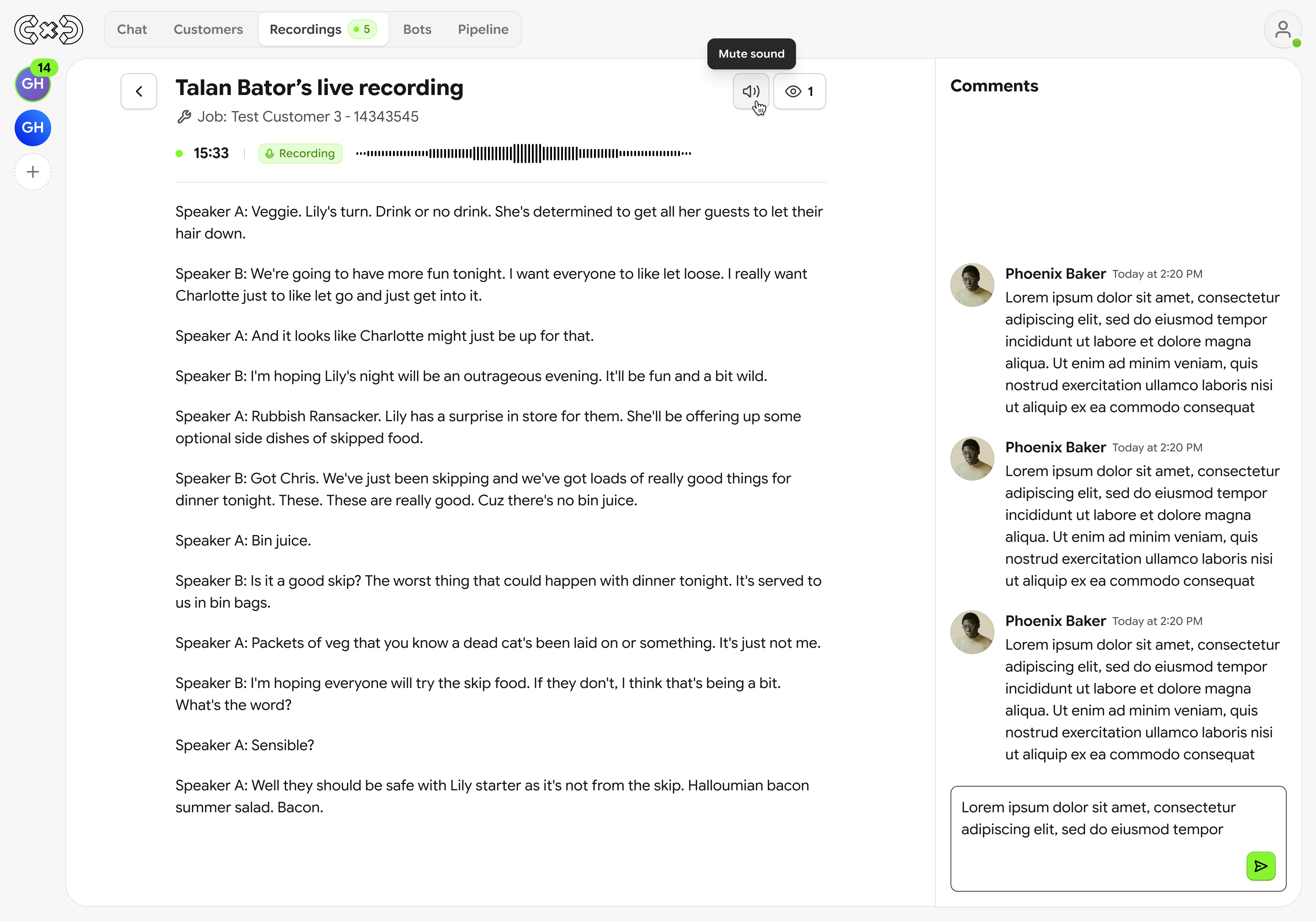
To send a note, type it in the field at the bottom of the panel and send. It lands on your tech's phone right away. Every note you send is also saved to the job channel in a thread on that recording, so anyone opening the job later can see what was said and when during the call.
A few more things worth knowing:
More than one person can join the same recording, and you'll see who else is there.
Closing the panel doesn't stop anything. The recording keeps going until the tech ends it.
When the tech stops recording, it moves to your completed recordings like any other.
Admins can join any live recording in the workspace. Managers can join recordings from techs assigned to them. Techs don't see the Recordings page.
If you're a manager and a tech you expected isn't showing up, ask your admin to assign them to you.
Live Recordings works for users on the Chat + Recording + Live seat, which is $100 per month per user. The seat goes to the person being coached, so managers and admins can join live recordings on any seat type without upgrading themselves.
To turn it on:
Go to Settings → Users.
Find the tech you want to coach live and turn on Live recording.
They're upgraded to Chat + Recording + Live right away. If they were on Chat + Recording, the difference is prorated from the day you turn it on, and you'll get an email with the invoice.

To turn it off, switch Live recording off for that user. They'll move back to Chat + Recording at the start of your next billing cycle. Free workspaces can assign the Live seat without being charged.
The Recordings page shows which users have Live turned on, so it's easy to see why some techs appear in the Live section and others don't. Admins will also see a note next to any tech without the seat, with a shortcut to Settings to turn it on.
Keep your notes short. Your tech is standing in front of a customer, so "Mention the maintenance plan before you wrap up" will help a lot more than a paragraph. And the best time to use it is when a tech is working on something specific, like handling price questions or walking the homeowner through options, so you can back them up in the moment instead of catching it a week later in review.
The right word at the right moment beats the perfect debrief after the fact.Join a tech's recording while it's happening, follow the transcript as it fills in, and send notes to their phone.