
The conversation that books the job matters as much as the visit itself. CSR call recordings bring your office calls into CxC alongside your field recordings, so you can coach the whole crew on how customers are greeted, how questions get answered, and what happens when a caller doesn't book.
Where CSR calls come from
CSR calls come from the phone system connected to your CRM, so there's nothing new for your CSRs to do. They take calls the way they always have, and the recordings show up in CxC once each call ends.
What shows up in the job channel
When a CSR call ends, one message posts in the job channel with the audio player and the transcript attached. Unlike field recordings, there's no "started" message, since a phone call doesn't have the same in-progress moment a visit does.
CSR call messages have their own icon so you can tell them apart from field recordings at a glance.
Finding a call later
Open the Recordings page and go to the CSR tab. You can search by job ID or customer name, filter by who took the call, and open any call to play it back and read the transcript.
Each call shows its status:
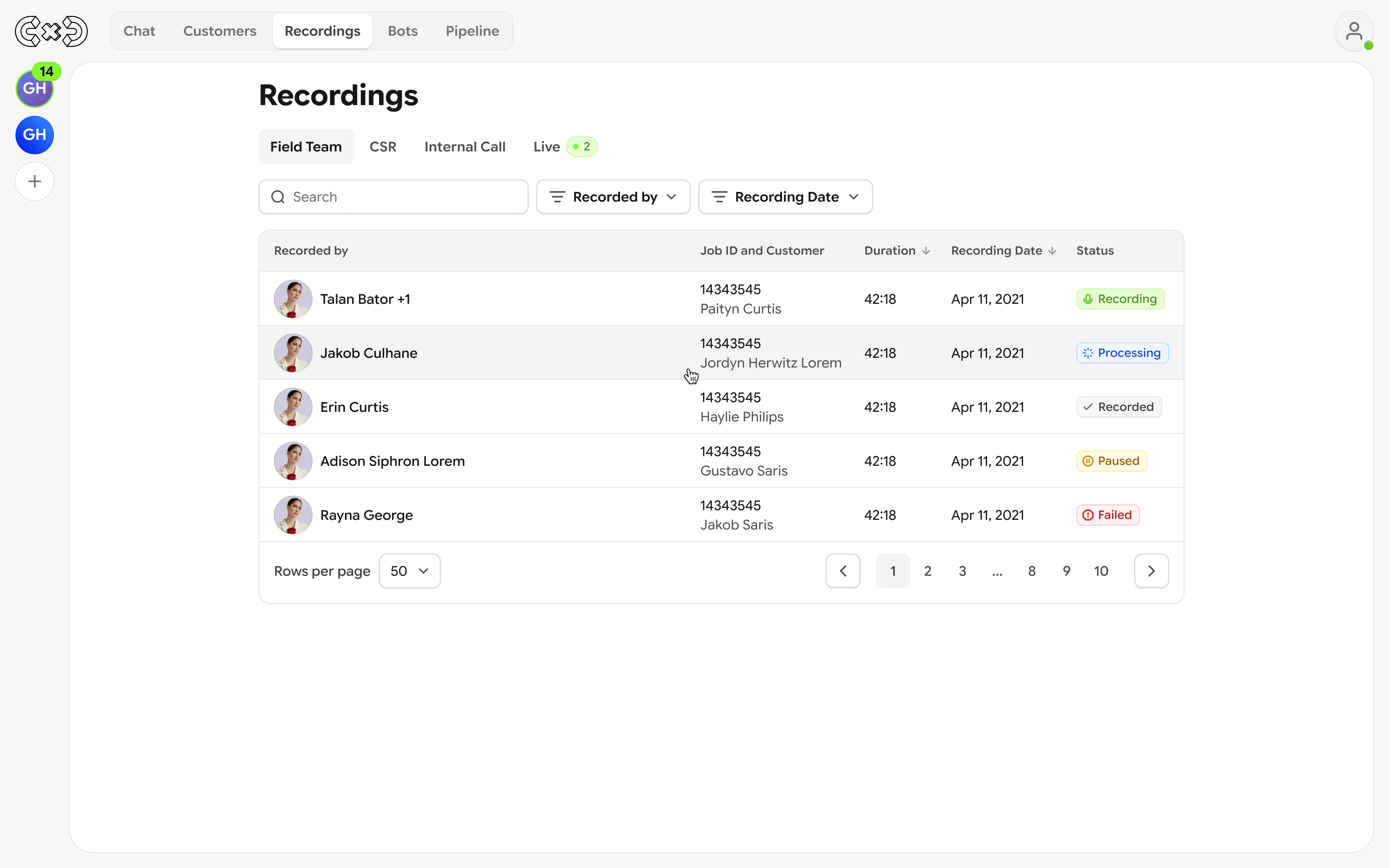
Recording: the call is still happening.
Transcribing: the call has ended and the transcript is being generated.
Transcribed: it's ready to play and read.
Failed: something went wrong during recording or transcription.
Getting bot feedback on CSR calls
CSR bots, like CSR Playbook, can review each call and post feedback to the job the same way field team bots do. For a bot to review a call, the user who took it needs a Chat + Recording seat in CxC.
CxC doesn't assign seats automatically, so it's up to your admin to set this up:
Go to Settings → Users.
Find each person who takes calls and assign them a Chat + Recording seat. You can also give them the CSR role.
Confirm the change. You'll see the new cost before it's applied, and you'll get an email with the invoice.
The first time you turn on a CSR bot, CxC reminds you about this so your calls don't go unanalyzed.
If a call wasn't analyzed
If a call comes in from someone without a Chat + Recording seat, the recording still appears on the Recordings page, but no transcript or bot feedback is created for it. You'll see a note in the job channel and on the Recordings page explaining why, with a shortcut to assign the seat in Settings. Calls that come in after the seat is assigned will be analyzed as usual.