
When a tech records a visit, everything that was said on the job is saved to that job in CxC: what the customer asked about, what was recommended, and how the conversation went. That gives you something real to coach from, and gives your techs a record to fall back on when a customer remembers things differently.
How techs record a job
Techs start a recording from the job channel on their phone by tapping Start Recording. If a job is about to start and nobody's hit record yet, CxC sends the tech a reminder shortly before the arrival window so it doesn't get missed.
Techs can pause a recording if they need to, and tap stop when they're done. There's nothing to upload or send. CxC takes care of it once the recording ends.
What shows up in the job channel
When a tech starts recording, a message posts in the job channel so everyone on the job knows it's underway. When it ends, a second message posts with the audio player and the transcript attached.
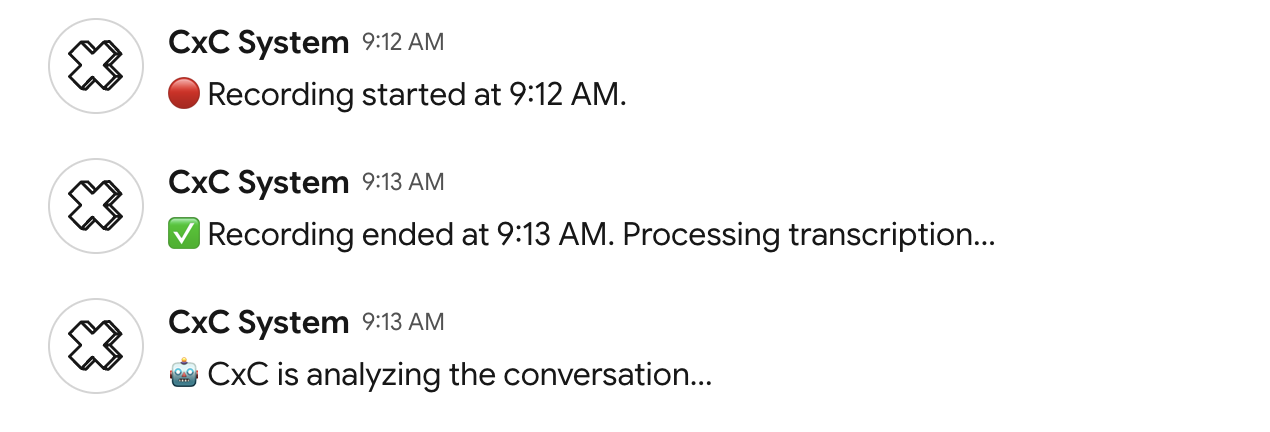
If you have bots turned on for field team recordings, their feedback posts to the job once the recording has been processed.
Finding a recording later
You can get to a recording two ways:
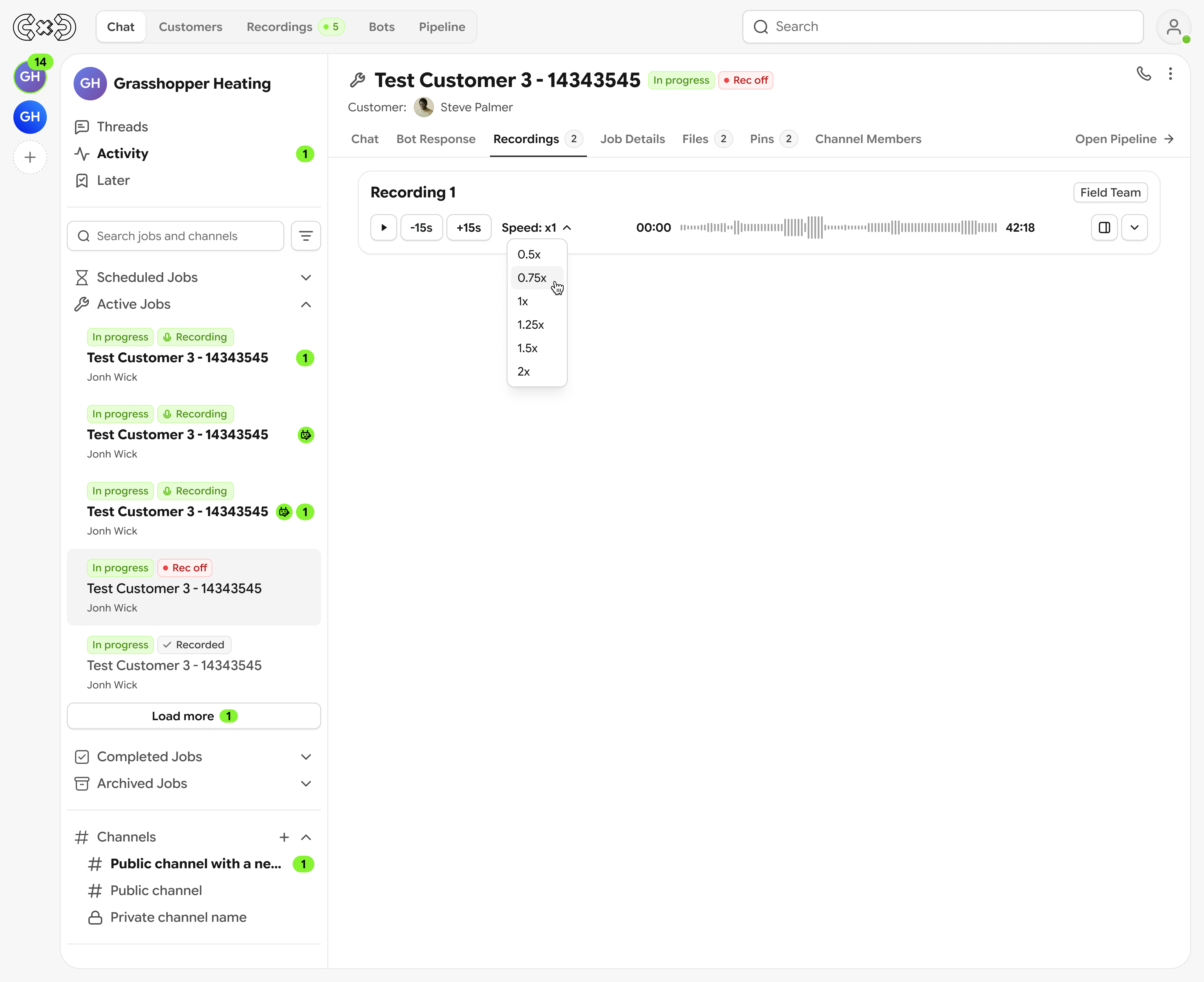
From the job channel. Open the job and go to the Recordings tab to see every recording from that visit.
From the Recordings page. Open the Field Team tab to see recordings across all jobs. You can search by job ID or customer name, and filter by who made the recording.
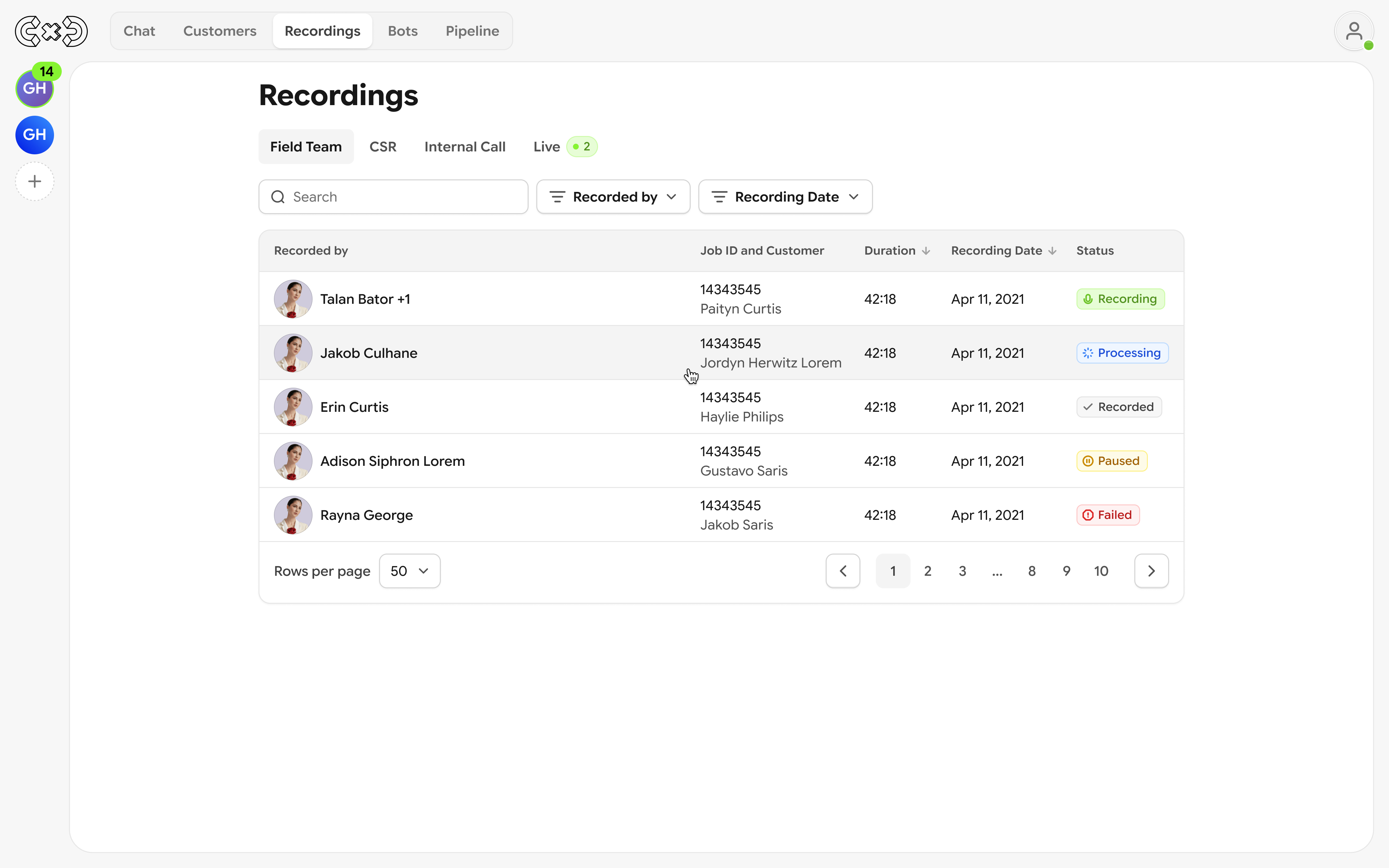
Each recording shows its status so you know where it stands:
Recording: the tech is still recording.
Paused: the tech paused the recording partway through.
Processing: the recording has ended and is being prepared.
Recorded: it's ready to play and read.
Failed: something went wrong during recording or upload.
Playing a recording and reading the transcript
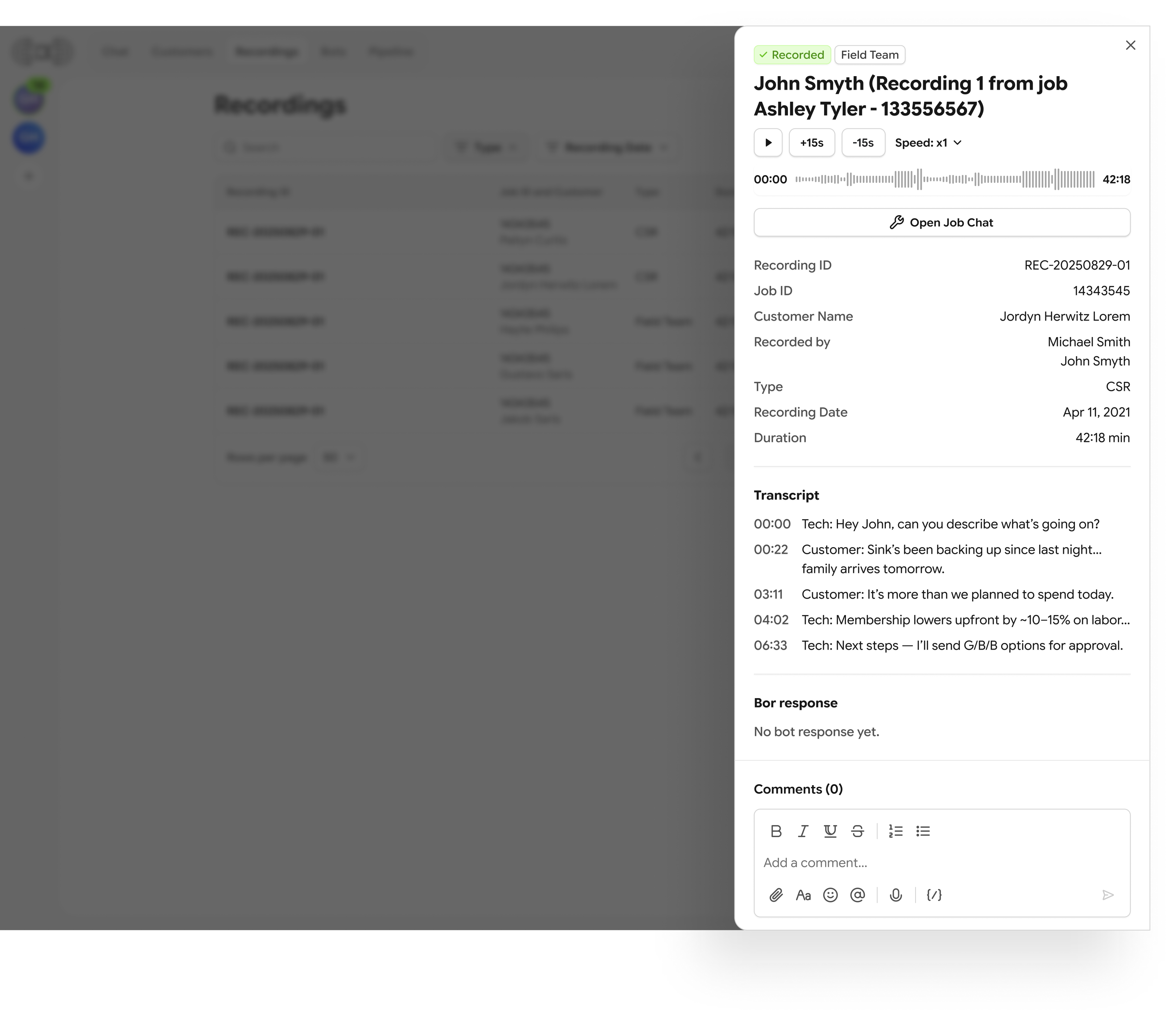
Open any recording to play it back. You can skip forward or back 15 seconds at a time and change the playback speed from 0.5x up to 2x, which helps when you're reviewing a long visit. The transcript sits alongside the audio with each speaker labeled, so you can jump straight to the part of the conversation you're looking for.
Who can record
Techs need a Chat + Recording seat to record jobs. If a tech is on a Chat seat, the record button shows as disabled and they can request access from their admin. Admins can change a user's seat anytime in Settings → Users.
If a tech moves to a Chat seat later, the recordings they've already made stay on their jobs.
Who can see recordings
Admins and managers can open recordings on the jobs they have access to. Techs can see their own recordings. If a job is reassigned to a different tech, the new tech sees the job's messages but not the previous tech's recordings.