
Every CxC bot comes with a prompt we wrote to handle the most common situations in the trades. Your shop isn't common, though. Maybe your CSRs always confirm the gate code, or your techs are expected to offer a maintenance plan on every visit. Customizing a bot lets you adjust its prompt so the feedback it gives matches how your crew actually works.
Before you start
When you customize a CxC bot, you're editing its prompt and nothing else. The trigger, tagline, and other settings stay as they are. If you need a bot that runs on a different trigger or covers a different scope, you'll want to create your own bot instead.
Your changes are saved for your workspace and apply to every future run of that bot. Recordings the bot has already reviewed keep their original results.
How to customize a bot
Go to the AI hub and open Bots.
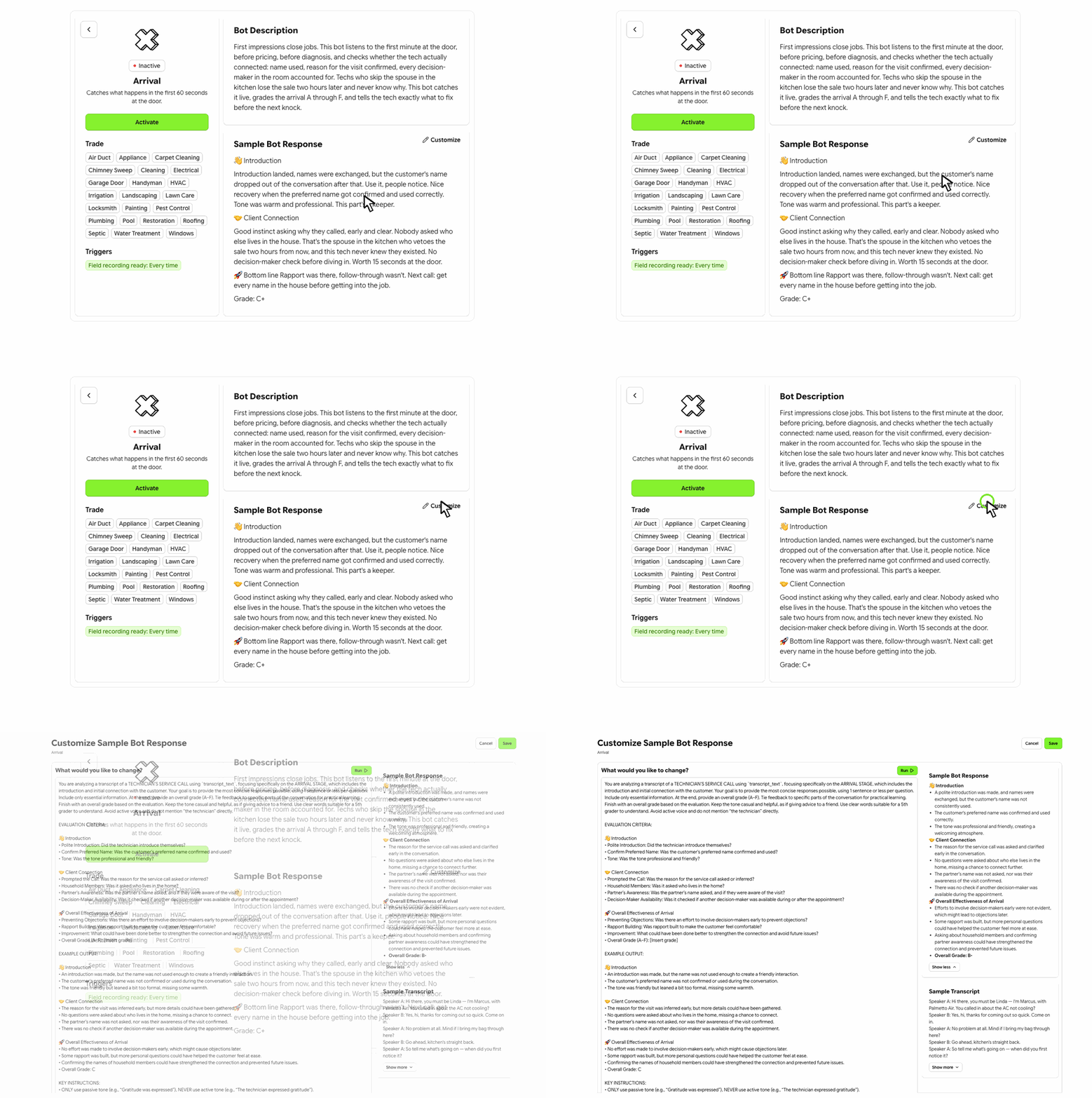
Select the bot you want to change, then select Customize.
On the customization page, you'll see the bot's prompt on the left and a response preview on the right. Below the preview is a sample transcript, so you can see how the bot would respond to a real call or visit.
Edit the prompt, then select Run. The preview updates based on your changes.
Keep adjusting and running until the response looks right to you.
Select Save.
That's it. The next time the bot runs, it uses your version of the prompt.
CSR Playbook and Field Team Playbook bots
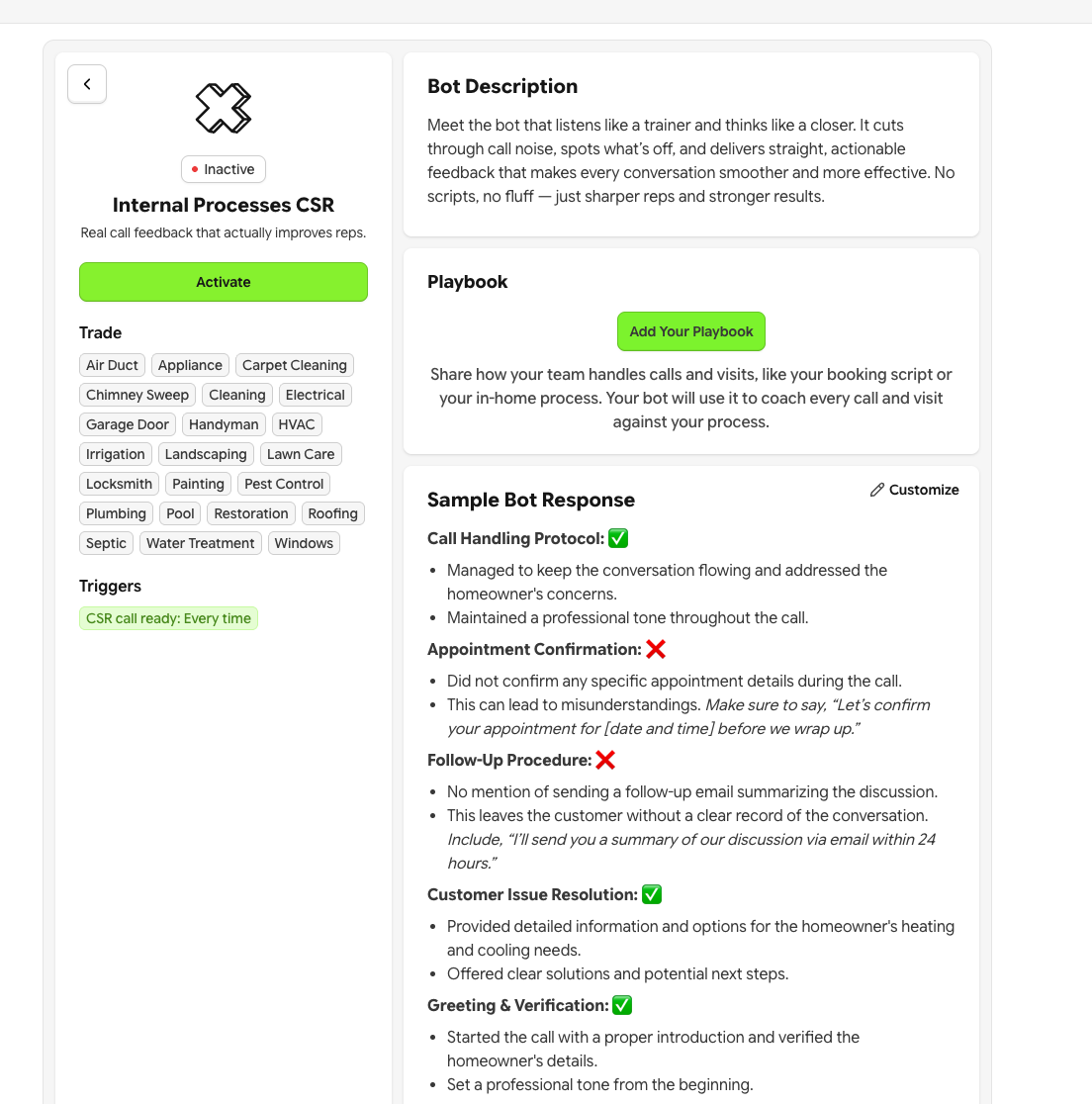
These two bots work a little differently. Instead of summarizing a recording, they check whether a call or visit followed your company's own process. To do that, they need to know what your process is.
When you customize either Playbook bot, you'll see a larger field where you can paste in your playbook: your call script, the steps your team should follow, what to say, and what to steer clear of. The bot uses it as the benchmark every time it reviews a recording.
If you previously added process details under Settings → AI personalization, you don't need to do anything. That information has been moved into the Playbook bots automatically, and the AI personalization section has been removed from Settings so there's only one place to manage it.
Going back to the original prompt
If your changes aren't working out, select Revert to original on the customization page. This discards your custom prompt and restores the bot's default.
Tips for a better prompt
The bot can only coach on what you tell it matters. Specific instructions like "flag any call where the CSR doesn't confirm the service address and a callback number" will get you sharper feedback than general ones like "check the call was good." Run your edit against the sample transcript each time, and read the result the way your CSR or tech would, since they're the ones who'll be reading it.