When you invite your team or import users from your CRM or Slack, the same person can end up with multiple accounts in CxC — one for their corporate email and one for their personal email. This creates duplicate profiles, split message history, and access confusion.
The account matching feature lets you merge these into one clean profile. Once merged, the user can sign in with any of their linked emails and always land on the same account.
⚙ How Merging Works
When you merge two accounts, you select one as the primary. The primary account is the one that stays — it holds the user's role, job channel access, message history, and settings. The secondary account is linked to it.
After merging, whenever the user signs in with any linked email, they are automatically logged in as the primary account. They never see two profiles. Everything is unified.
🔍 How to Match and Merge Accounts
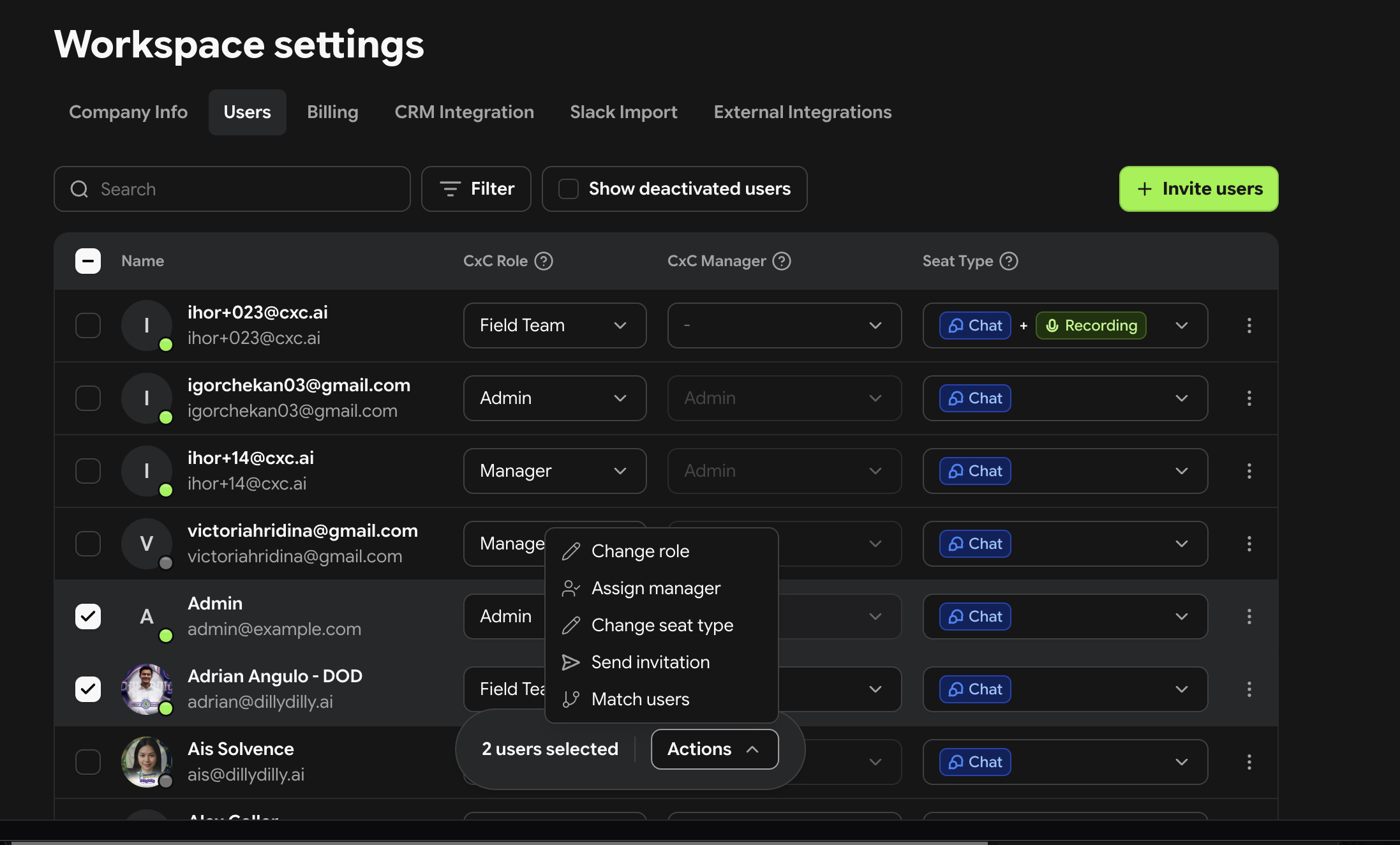
Go to Settings → Users
Find the user you want to merge
Click on their profile
Select Match / Merge Account
Search for the duplicate profile — by name or email
Select which account is the primary
Confirm the merge
The accounts are linked immediately. The secondary email is now an alias for the primary account.
📊 User Status Combinations and What They Mean
Merging works when both accounts are Active or Invited. Any other combination (if one of the users is inactive or deactivated) will cause the merge to fail.
In both cases the fix is the same: invite the Inactive or Deactivated user first. Once they have an Active or Invited status, go back and retry the merge.
What to do if a merge isn't working:
Check the status of both accounts in Settings → Users
If either account shows as Inactive or Deactivated, reactivate them and send them a new invite
Once their status updates to Invited or Active, retry the merge
💡 Common Scenarios
Tech signed up with personal email, should be using work email
Find both profiles in Team Members. Set the work email account as primary and merge the personal email in as secondary. Going forward the tech logs in with either email but always lands on the work account.
Slack import created duplicates
After importing Slack, some users may appear twice — once from the import and once from their CxC invite. Use the matching tool to merge them and select the CxC invite account as primary to preserve their role and permissions.
New hire already exists from a previous workspace
If someone worked at another location using CxC and is joining your workspace, their email may already exist. Match their accounts to consolidate access without creating a duplicate profile.
Team member changed their email
Deactivate the old account, invite them with the new email, then merge the old account in as a secondary so their history is preserved.