In CxC, every technician is linked to a manager. This assignment determines who appears in the job chat alongside the tech — and who's responsible for coaching and oversight on that job.
⚙ How Assignments Work
When a technician is dispatched to a job, their assigned manager is automatically added to the job channel. No one has to manually add them. No one has to remember to loop them in. It just happens.
In the sidebar, a manager sees all job channels for every technician assigned to them — organized under Active or Scheduled Jobs. As soon as a tech is dispatched, that job channel appears in the manager's sidebar automatically. They can follow every job across their whole team from one place without searching or switching views.
If a technician doesn't have a manager assigned, admins will still have visibility into all job channels — but the tech won't have a dedicated manager in their chat for real-time coaching and support.
🔗 How to Assign a Manager to a Technician
Go to Settings → Users
Select the technician you want to configure
Under Manager Assignment, select their manager from the dropdown
Save
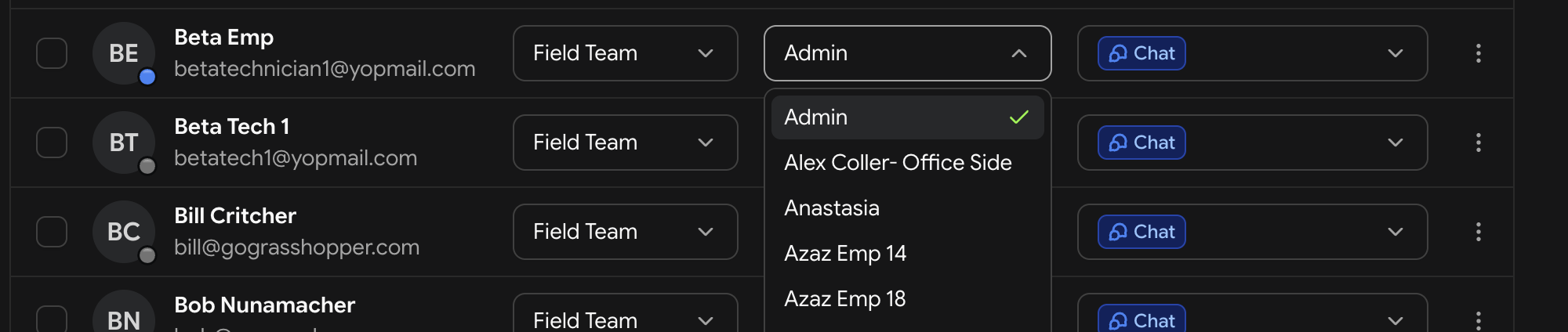
The assignment takes effect immediately. The next time that technician is dispatched to a job, their manager is automatically added to the channel and the job appears in the manager's sidebar.
📋 Setting Up Assignments During Onboarding
Manager-to-technician assignments can also be configured during the workspace setup flow on the reconciliation screen. We recommend doing it there so your team structure is correct before the first job channel is created.
If you skipped it during setup, go to Settings → Team Members and configure it for each technician individually.
🔄 Changing an Assignment
If a technician moves to a different manager — due to a reorganization, a new hire, or a location change — just update the assignment in Settings. The change takes effect immediately on all future jobs. Existing job channels are not affected.
👥 One Manager, Multiple Technicians
A manager can be assigned to multiple technicians. There's no limit. Every job channel for every assigned tech appears in the manager's sidebar automatically — giving them a live view of everything their team is working on.
❓ FAQ
What if a technician has no manager assigned?
They can still use CxC and will be added to job channels when dispatched. Admins have visibility into all channels. However the tech won't have a dedicated manager automatically in their chat — assign one before their first job.
Can a technician have more than one manager assigned?
Currently each technician is linked to one manager. If you need multiple people overseeing a tech, admins always have full visibility into all job channels regardless of assignment.
Does changing an assignment affect existing job channels?
No. The change applies to future jobs only. Existing active job channels are not updated.
Can managers see jobs for techs not assigned to them?
Managers have visibility into all jobs and team activity from their dashboard. However they are only automatically added to job channels for their assigned technicians, and only those job channels appear in their sidebar.