Zapier lets you connect CxC to thousands of other apps and automate workflows without writing a single line of code. If something happens in another tool, Zapier can trigger an action in CxC — and vice versa.
⚙ How to Connect CxC to Zapier
Before building any Zaps, you need to generate an API key in CxC and connect it to your Zapier account.
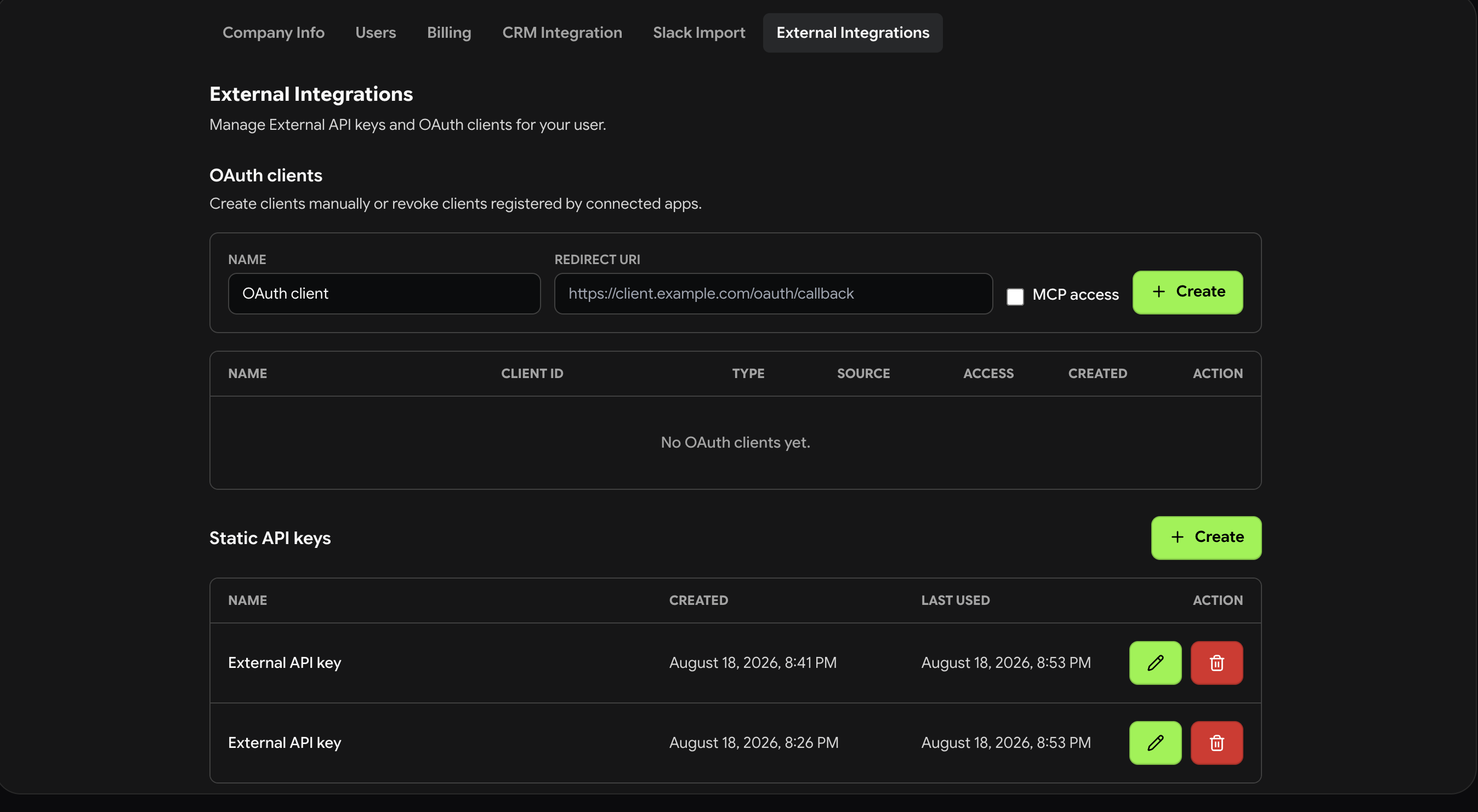
In CxC, go to Settings → External Integrations
Click Create API Key
Copy the key
In Zapier, go to My Apps and search for CxC
Paste your API key to authenticate
Your CxC workspace is now connected and ready to use in any Zap
🛠 What CxC Can Do in Zapier
CxC supports the following actions — meaning Zapier can trigger these in CxC when something happens in another app:
Create a Channel - Creates a new public or private channel in your CxC workspace. Useful for automatically spinning up team channels based on external triggers.
Add User to Channel - Adds a user to an existing public or private channel. Useful for automatically managing channel membership based on role changes or new hires.
Send a Message - Sends a message to any channel in your CxC workspace. Useful for posting automated updates, alerts, or notifications from external systems directly into a chat.
Create a Job Channel - Opens a new job channel in CxC when a job is created in an external system. Useful for teams not using ServiceTitan or HouseCall Pro who want to trigger job channels from another CRM or scheduling tool.
Add User to Job Channel - Adds a participant to an existing job channel. Useful for adding users to jobs based on assignment events in other tools.
Update a Job - Updates a job's status, customer name, description, or appointment times in CxC. Useful for keeping job data in sync when updates happen in an external system.
💡 Example Use Cases
Using a CRM other than ServiceTitan or HouseCall Pro? Use the Create a Job Channel action to automatically open a CxC job channel whenever a job is created in your CRM — Jobber, Workiz, or any other tool Zapier supports.
New team member added in your HR system? Automatically add them to the right CxC channels using Add User to Channel, so they're in the conversation from day one.
Want to post alerts into a job channel? Use Send a Message to push notifications from any external tool — payment confirmations, parts orders, scheduling updates — directly into the right CxC channel.
Using Google Forms for customer intake? Trigger a job channel creation in CxC the moment a form is submitted, with customer details passed in automatically.
Tracking jobs in Airtable or a spreadsheet? Use Update a Job to keep job status in CxC in sync whenever a record is updated in your tracking tool.
🔌 Popular Apps to Connect with CxC
Gmail
Google Forms
Airtable
ActiveCampaign
Workiz
CxC connects with 9,000+ apps through Zapier. Browse all available integrations at zapier.com/apps/cxc/integrations.
❓ FAQ
Do I need a Zapier account? - Yes. You'll need a Zapier account to build and run Zaps. Zapier has a free tier available.
Where do I find my API key? - Go to Settings → External Integrations in CxC and click Generate API Key.
Can I trigger actions in other apps when something happens in CxC? - The current Zapier integration supports CxC as an action app — meaning CxC responds to triggers from other apps. Check the Zapier page for the latest list of supported triggers and actions as we continue to expand the integration.
Something not working? Reply here or contact our support team and we'll help you get it sorted.